
Summary
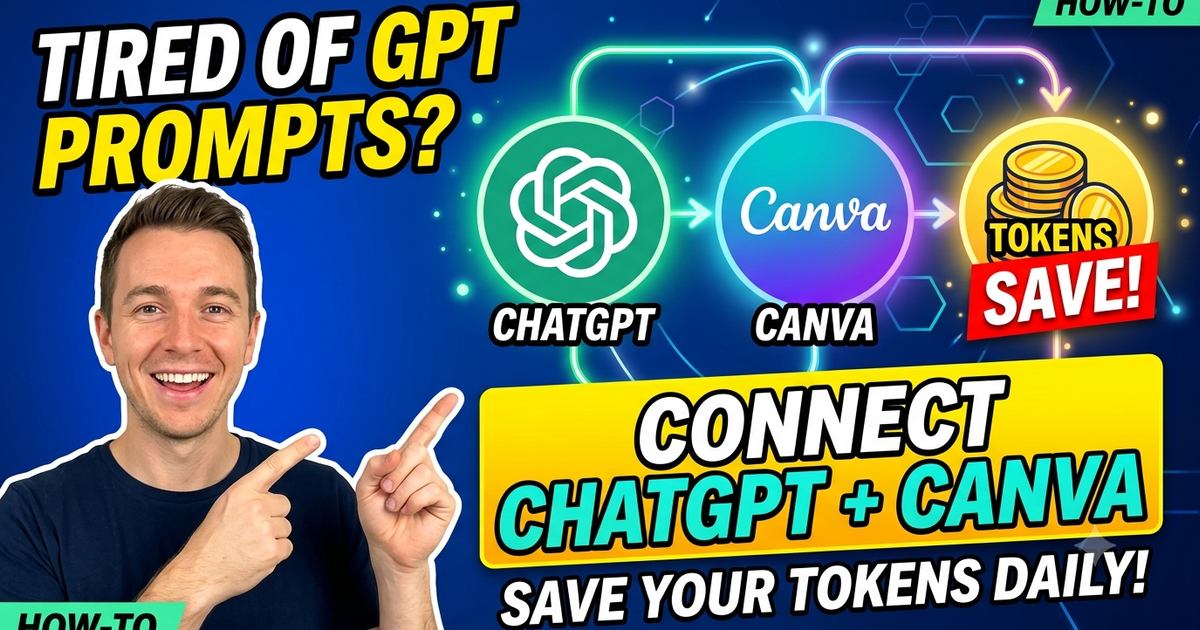
This blog explains a practical solution to efficiently customize images and logos generated via ChatGPT by integrating it with Canva . The integration allows users to avoid repeatedly providing multiple prompts for minor edits and thus saves valuable ChatGPT usage tokens. The method simplifies image editing by converting AI-generated outputs into fully editable Canva formats where changes like font, color, and layout can be done interactively.
1. Problem with Editing AI-Generated Images
You can also Watch the video here - https://www.youtube.com/watch?v=g_1vXwkoZi8
The Blog highlights a common issue faced when using ChatGPT for image generation and editing:
- Generating images such as logos or thumbnails via ChatGPT often requires multiple prompts for modifications (e.g., changing fonts, adjusting elements).
- This iterative process is tedious and inefficient because ChatGPT rarely gets it right on the first try.
- Frequent edits consume ChatGPT daily usage tokens quickly, hitting user limits.
- There is no direct way to edit generated images interactively within ChatGPT itself.
Key challenge: How to customize AI-generated images flexibly without repeatedly exhausting ChatGPT prompts?
2. Solution: Connecting ChatGPT with Canva
The core solution presented is connecting ChatGPT to Canva, a graphic design app offering rich editing features.
Steps to Set up the Integration:
- Navigate to the ChatGPT app’s menu section and locate the integration or app section.
- Select Canva (Cwa) from the list of available apps and click on Connect.
- Sign in to your Canva account and allow ChatGPT to access Canva. This permission is manual and can be revoked, not permanent.
- Once connected, share the AI-generated image (like a logo) with ChatGPT.
- Use a specific prompt requesting ChatGPT to convert the image into an editable Canva format.
Benefits of the Integration:
- After the image is converted and permission granted, ChatGPT redirects you automatically to the Canva editing interface.
- You can now edit the image directly in Canva:
- Change font types and sizes.
- Adjust colors.
- Move image elements freely.
- Modify styles or add new design elements.
- This workflow eliminates the need for multiple ChatGPT prompt cycles, saving tokens and time.
Share this article
Found this helpful? Share it with others!